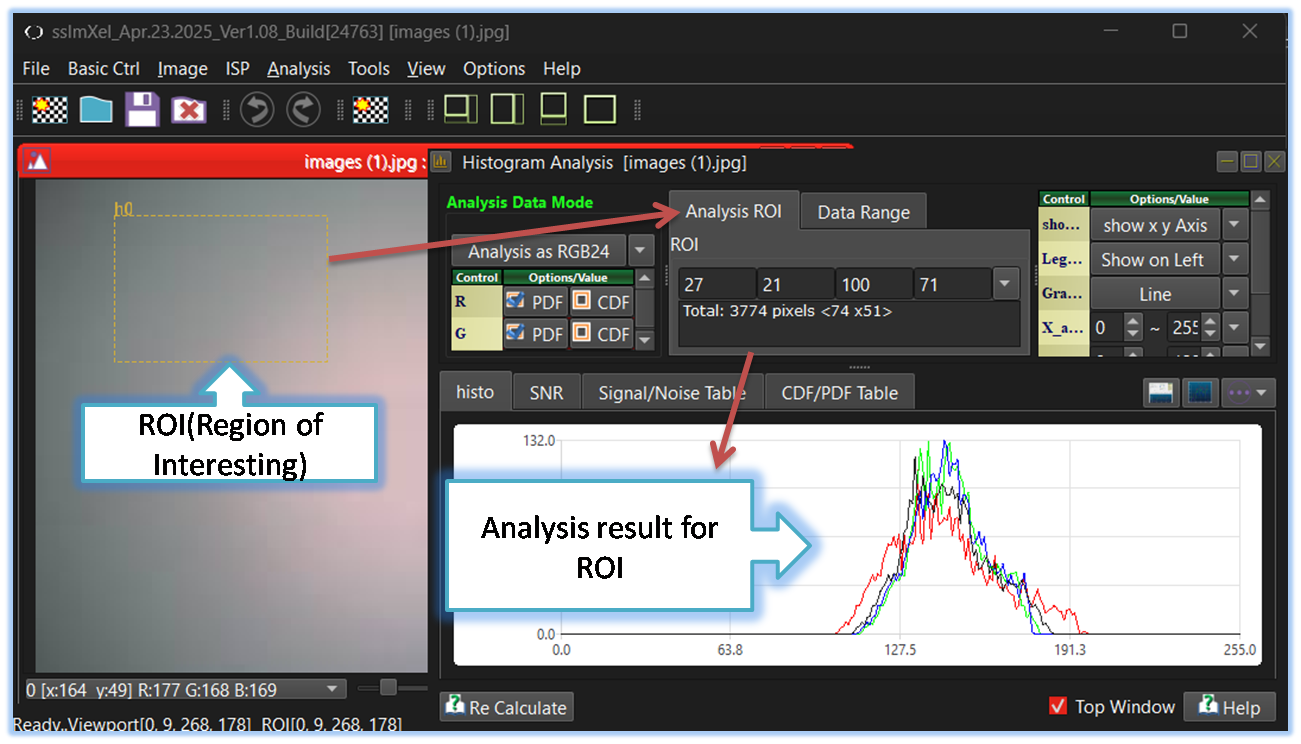
ROI(Region of Interest)

The Region of Interest (ROI) refers to a specific area within an image that is selected for focused analysis. Using ROI offers several key benefits:
-
Improved Processing Efficiency
Limits analysis to only relevant areas, reducing computational load and speeding up processing time.
-
Increased Accuracy
By isolating specific regions, users can avoid background noise and focus on meaningful data, resulting in more accurate outcomes.
-
Simplified Visualization
Displaying only the relevant areas helps users quickly interpret and understand analysis results.
-
Optimized Resource Usage
Reduces storage and memory requirements by avoiding full-image processing when unnecessary.
-
Analyze various aspects within a specific area, such as color, signal, noise, hot pixels, and many other image characteristics.
-
Cropping a portion of an image as new Image.


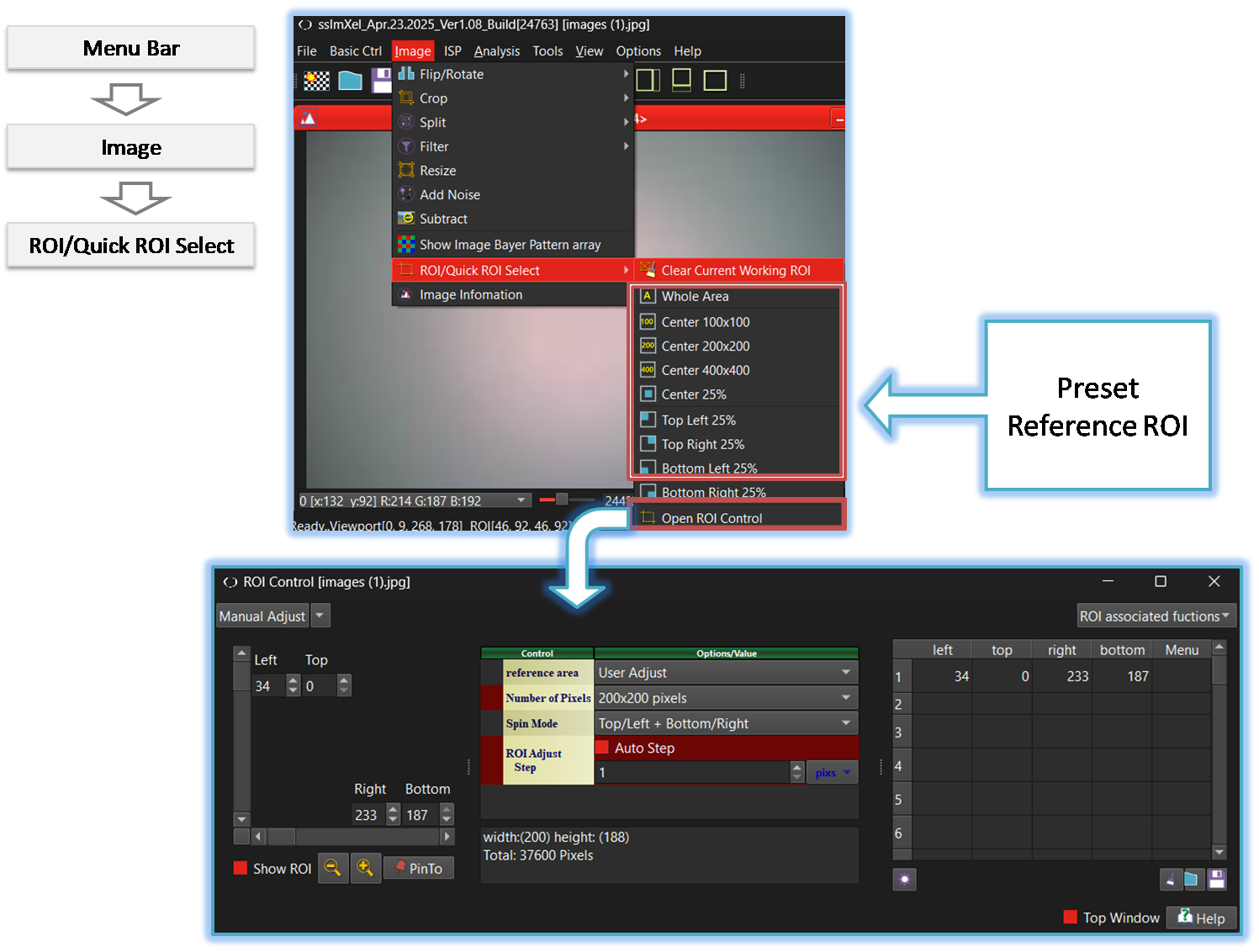
By selecting the menu options in the order shown in the image above or by choosing the toolbar icon
 , the ROI dialog box will be showed up as shown in below picture.
For a more detailed explanation of the toolbar button or how to configure toolbar,please refer to configure toolbar
, the ROI dialog box will be showed up as shown in below picture.
For a more detailed explanation of the toolbar button or how to configure toolbar,please refer to configure toolbar
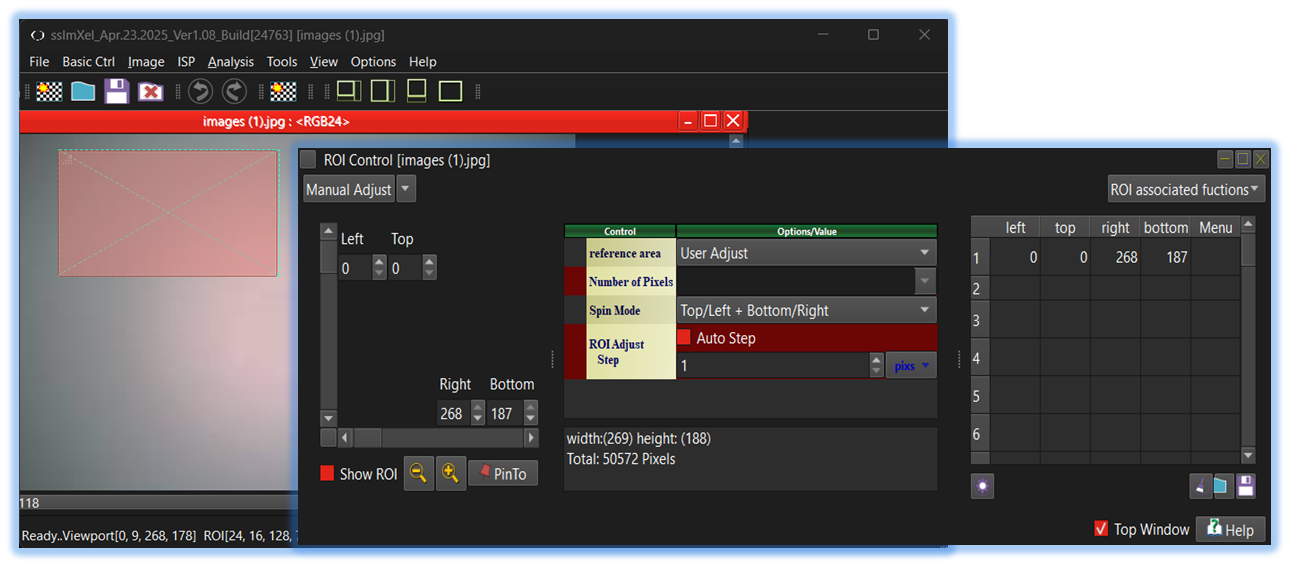

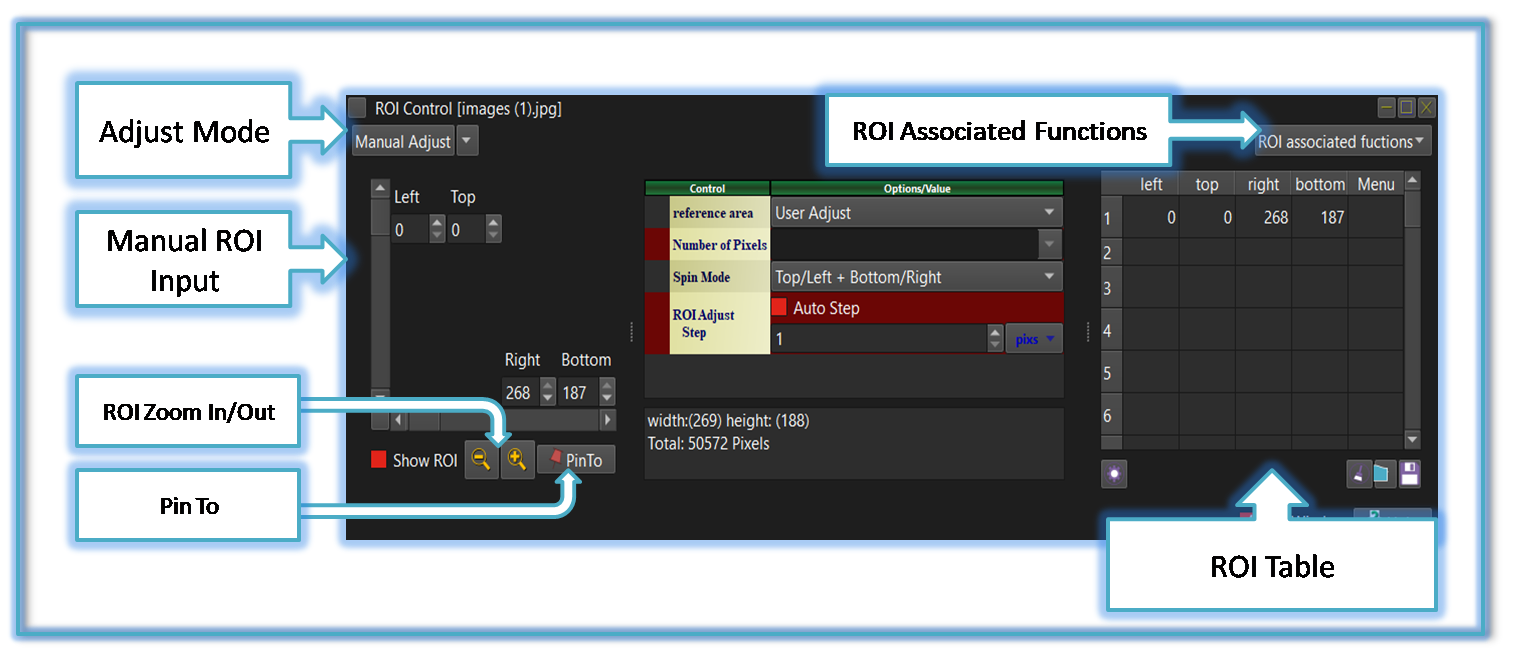
-
Adjust Mode
SSImXel provide several options for ROI Value adjust

-
Manual Adjust
Users can manually define and modify the ROI by adjusting it using direct input.
-
ROI Update with Viewport Change
The ROI dynamically updates as the viewport changes, ensuring that the selected region aligns with the user's current view..
-
ROI Update with ROI Band
Users can define and modify the ROI by selecting or adjusting it using ROI Band with mouse control,This provides precise control over the selected region..
-
ROI Update with Viewport Change + ROI Band
Combines both viewport-based updates and ROI band adjustments, ensuring that the selected region adapts to both user view changes and predefined constraints. This provides a balance between dynamic adjustment and structured selection.
-
Manual Adjust
-
Manual ROI Input
Users can manually input the ROI value using the control options below.
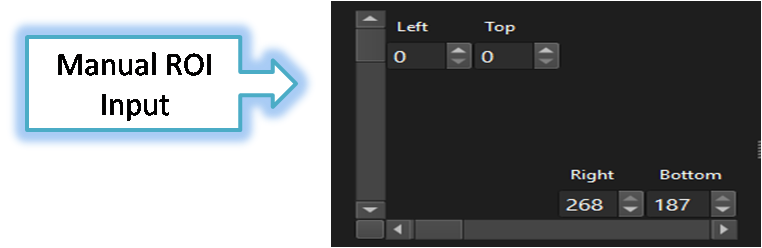
-
ROI Zoom In/Out
Users can easily increase or decrease the ROI size using this control.
-
Pin to
Pressing this button will list the current ROI value in the ROI table.
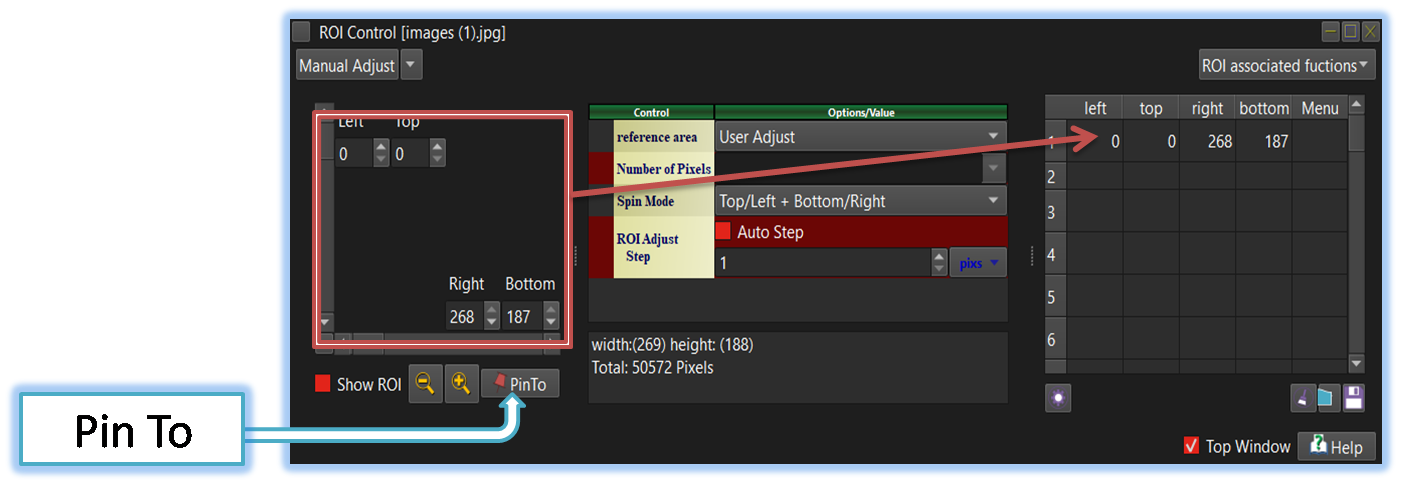
-
ROI Associated Functions
By pressing this button, users can instantly execute ROI-related functions.
Crop, PixelFinderDN, PixelFinderDN, PixelFinderDN, PixelFinderDN,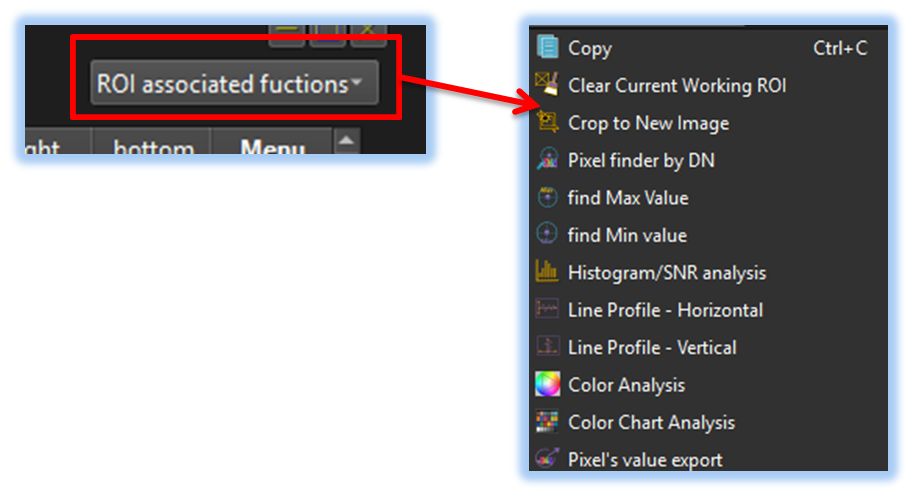
-
ROI Table
Users can list the current ROI value or frequently used ROI values in the ROI table. By clicking on each ROI value item or Clicking Send menu in Each item control Menu, the current ROI value instantly updates, making it convenient for comparative analysis of multiple ROI values.
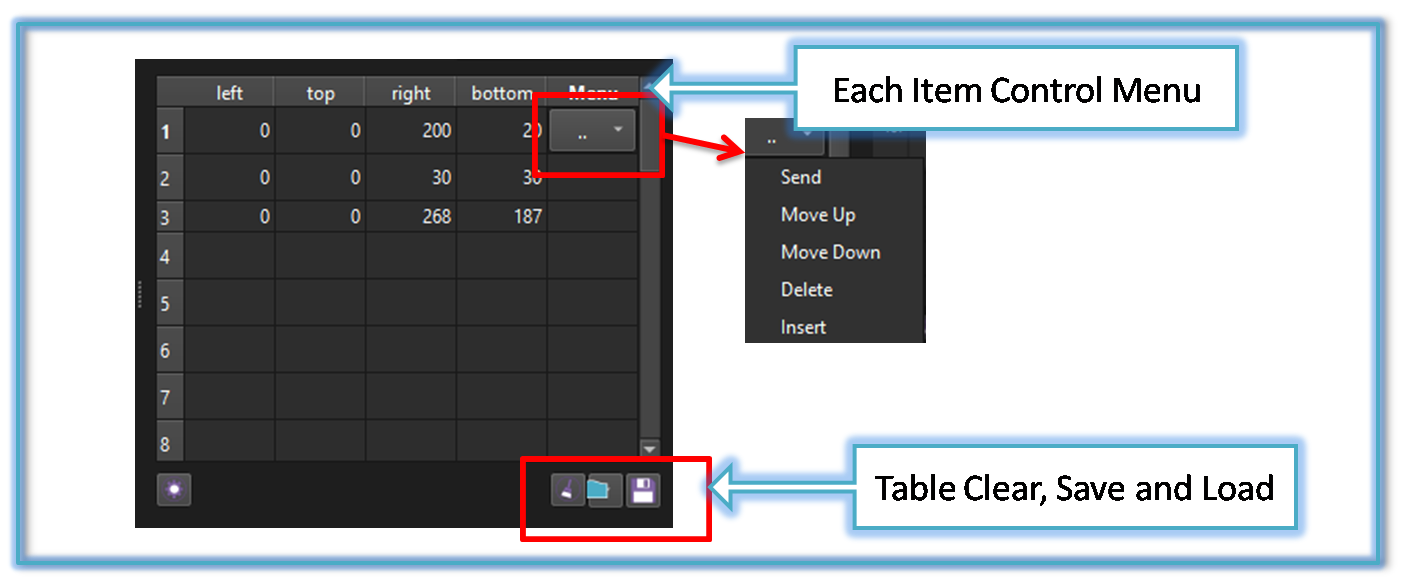
Each item control Menu: Users can delete or rearrange ROI value items through the 'Each Item Control Menu.
Table Clear Menu: Clicking this button will remove the entire list of ROI value items.
Save and Load: Listed ROI values can also be saved as a file, allowing users to load them later when needed.