Color Matrix
 Color matrix control is essential in an image tool for adjusting color balance, correcting sensor-specific color shifts, and achieving accurate color reproduction. This tool provides intuitive controls for precise color matrix adjustments, allowing users to fine-tune colors with ease and flexibility.
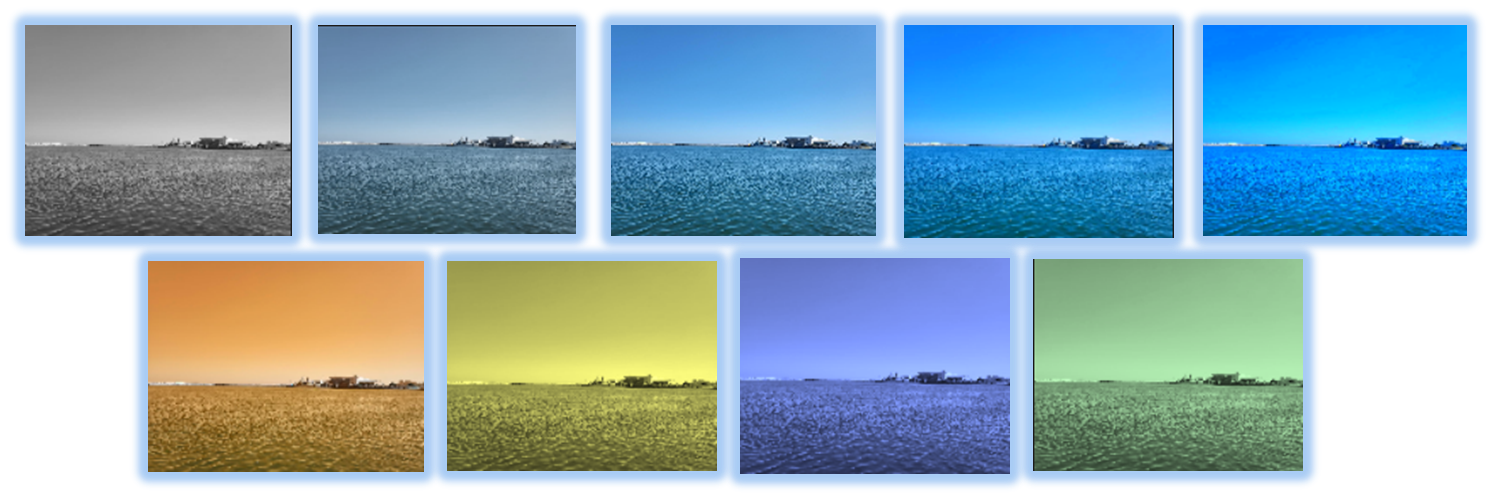
 .
.
- SSImXel provides a powerful and intuitive Color Analysis Tool , enabling precise color measurement and comprehensive analysis with ease. Additionally, it offers a dedicated Color Checker Analysis Tool for enhanced accuracy and evaluation.

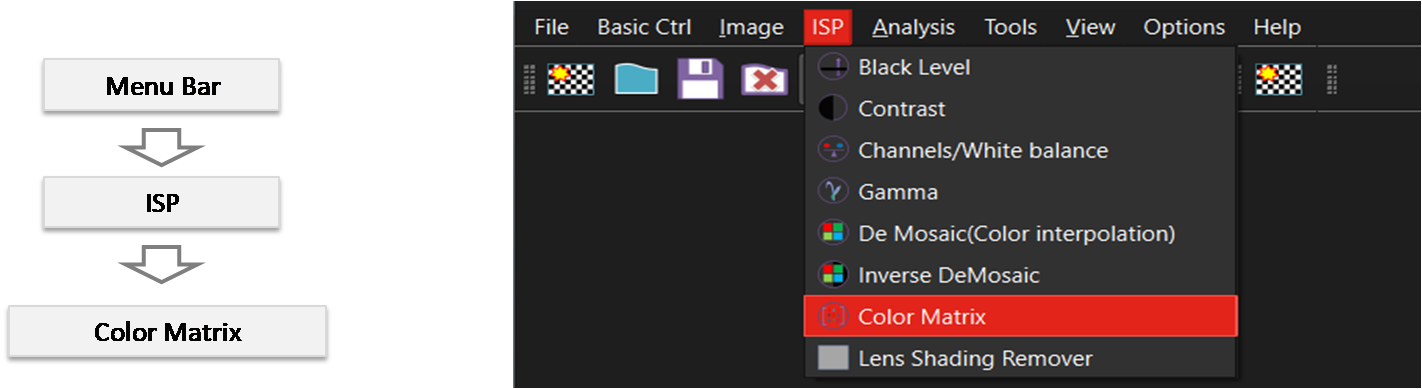 By selecting the menu options in the order shown in the image above or by choosing the toolbar icon
  , the ColorMatrix dialog box will be showed up as shown in below picture.
For a more detailed explanation of the toolbar button or how to configure toolbar , please refer to this link
, the ColorMatrix dialog box will be showed up as shown in below picture.
For a more detailed explanation of the toolbar button or how to configure toolbar , please refer to this link
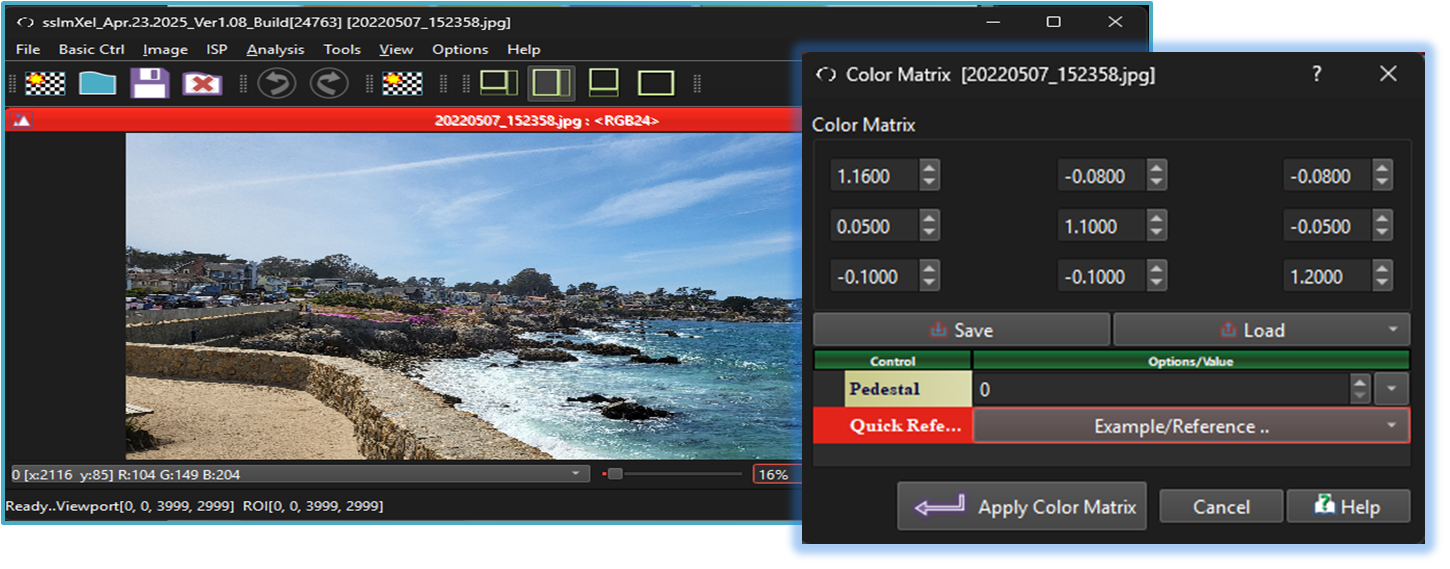

In "Color Matrix" control dialog box, the user adjusts configurations for '3x3 Matrix values' and 'Pedestal' Then, by clicking the 'Apply Color Matrix' button, the tool will apply the color matrix processing to the image. The color matrix can only be used with the processed image in RGB24 format ->RGB24 image
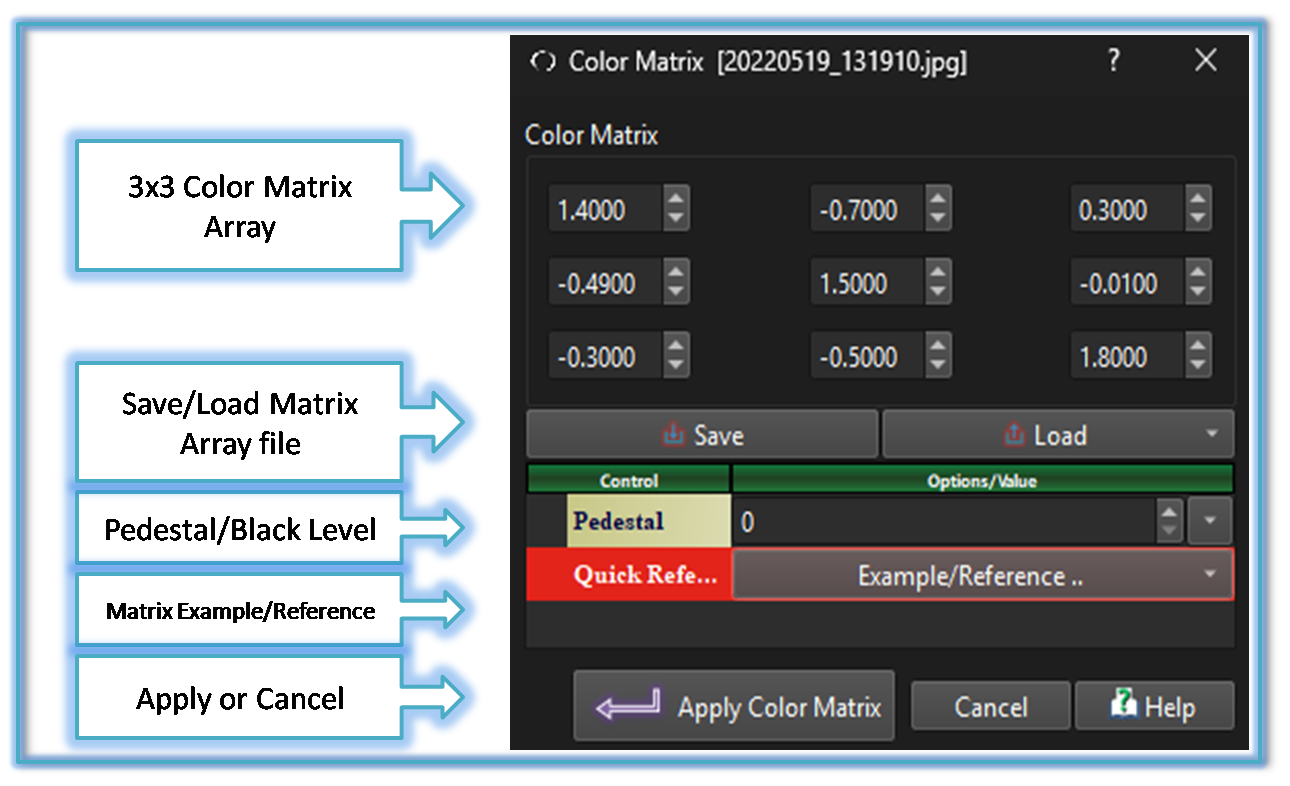
- 3x3 Matrix: The user can input any combination of RGB-based 3x3 color matrix values, allowing for flexible and customized color adjustments.
- Save/Load Matrix arry file The user can save each input color matrix value as a separate file and also load previously saved values when needed.
- Pedestal/Black Level If an image has Pedestal or Black Level applied, the user can adjust these settings using this control. The tool will then process the color matrix based on the specified value, ensuring accurate color adjustments.
-
Matrix Example/Reference:
The Color Matrix control offers a variety of preset color matrix values, providing users with examples to guide adjustments and optimize color transformations.
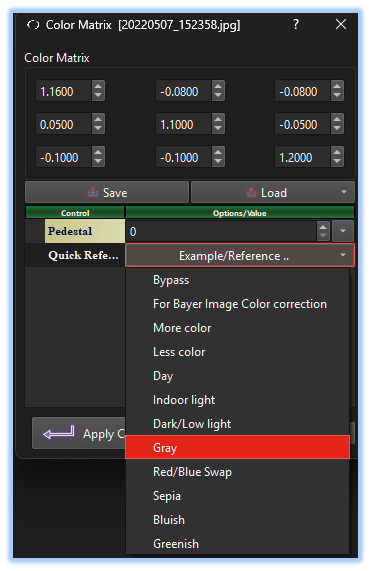
- Apply or Cancel: Once the user has adjusted all parameter values, they can click the 'Make Image Flatten' button. The tool will then process the image flattening, allowing the user to view the applied changes. and if the user clicks the cancel button, the Image flatter control dialog will be closed without applying any changes to the image.
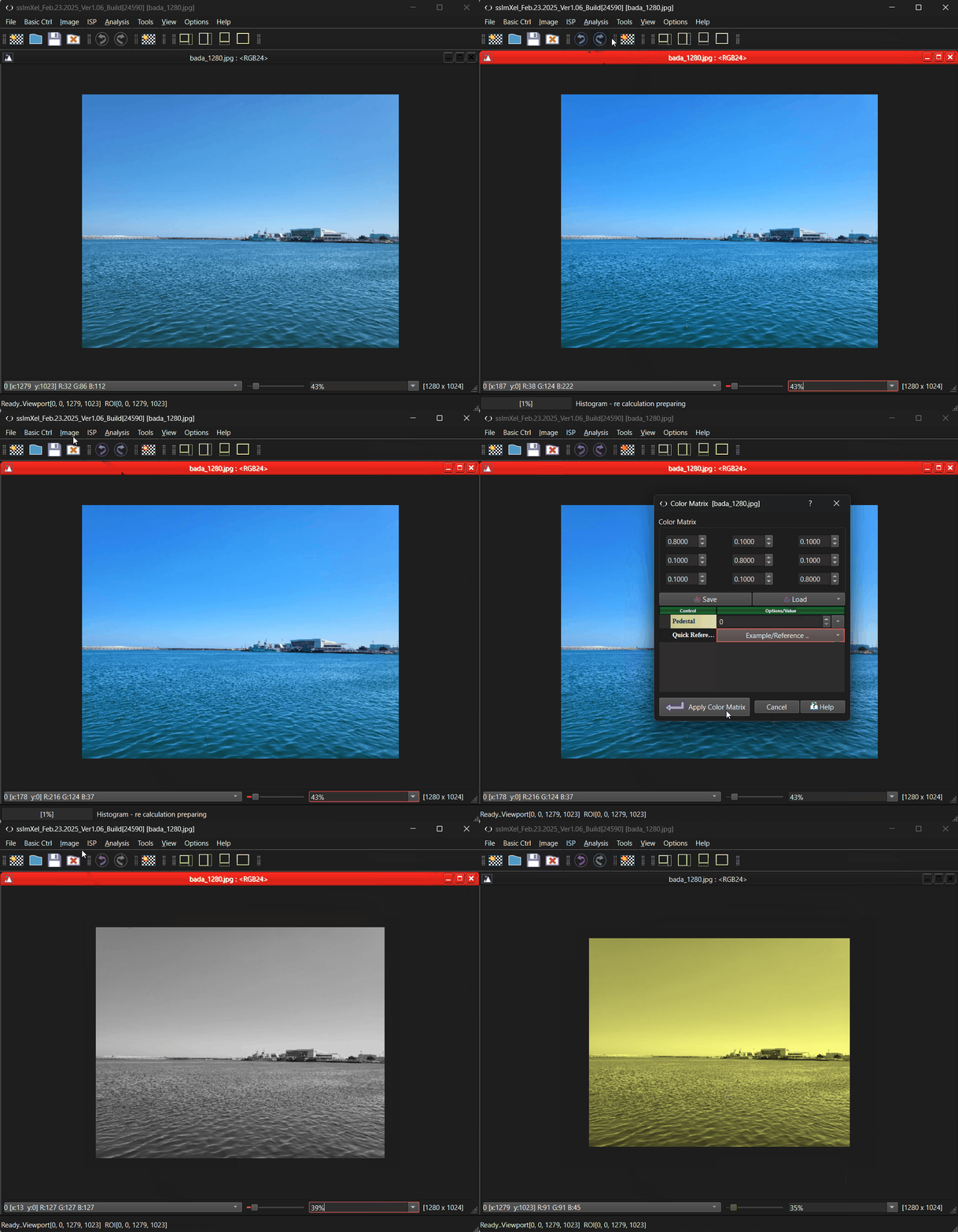
 Below demo demonstrates ColorMatrix
 .
.