Toolbar Config

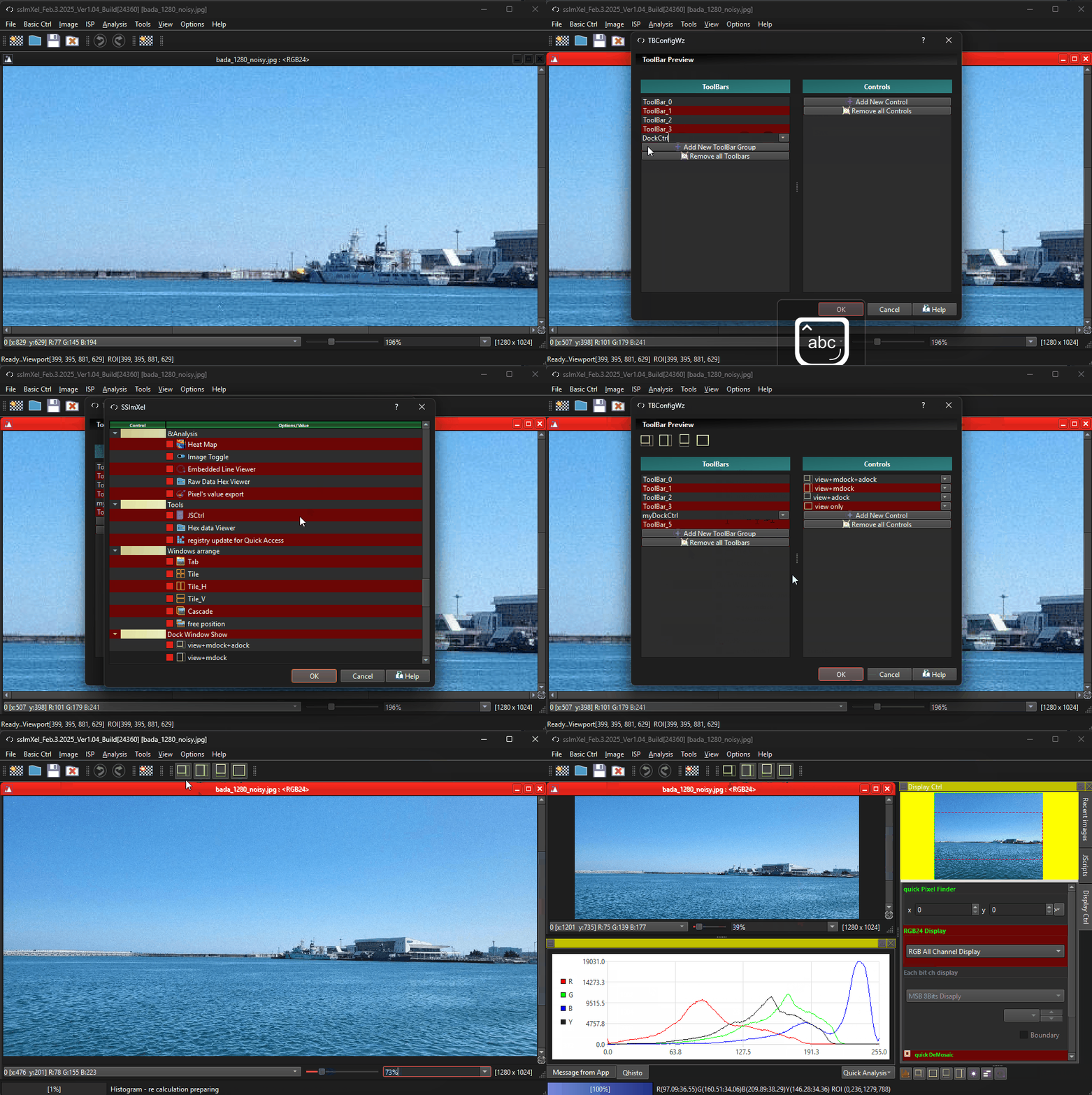
Under the Options Tab, users can configure their toolbar with the Toolbar Config option, which will open up a new window.
Users can click on individual toolbars on the left-hand side, which will bring up their icons and controls on the right-hand side. From there, users can edit each toolbar or icon to suit their needs. Users can edit each icon by clicking on the drop-down menu next to each icon

| Control | Function description |
|---|---|
| Remove | Removes the icon/control |
| Insert | Inserts a new control at the original icon’s location |
| Insert separator | Inserts a bar at the original icon’s locatio |
| Move up/down | Moves the icon’s location up or down |
More options at the bottom of each side allows the user to edit the toolbar or controls
Toolbars can be adjusted in the main window by clicking on the column of dots and dragging them
 Below demo demonstrates for ToolBar Configure function
.