DefectPixel
-> go to [Analysis Main]

Defect Pixel Analysis allows users to automatically detect and visualize abnormal pixels - such as hot, dead, or stuck pixels - based on customizable criteria. This helps identify sensor issues or evaluate image quality with high precision across various image types.
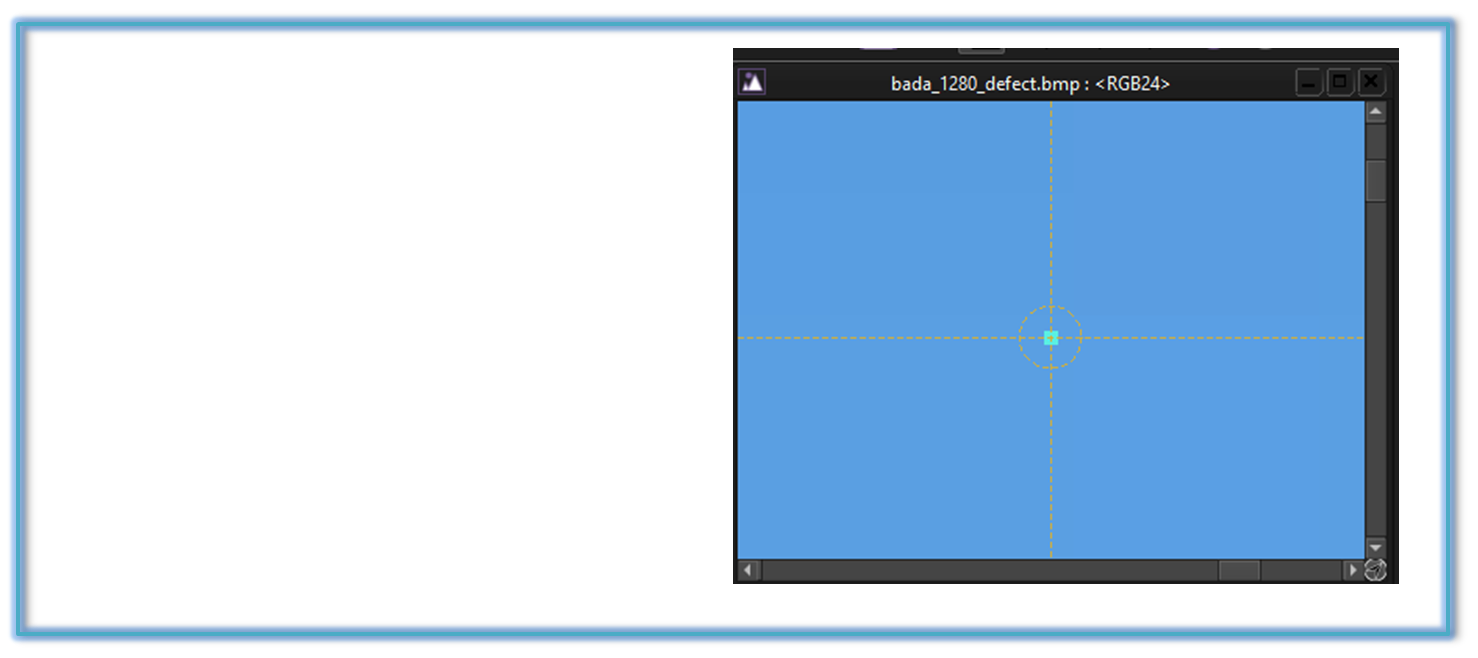

- Analysis Main (Parent Menu)

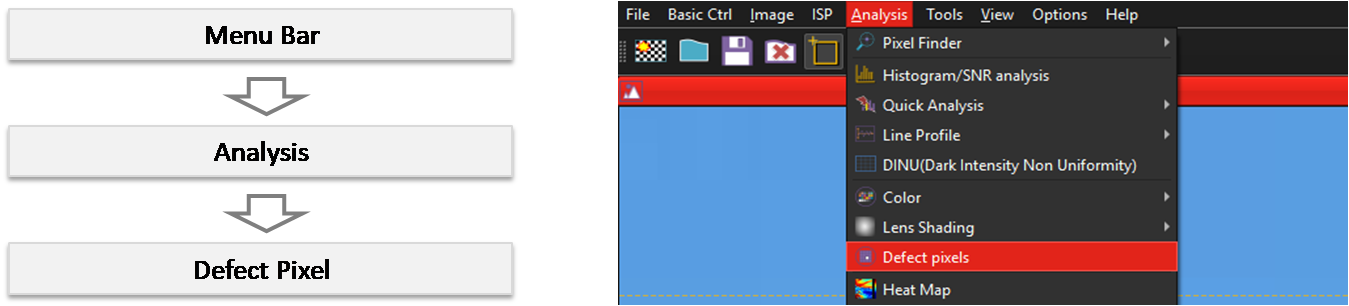
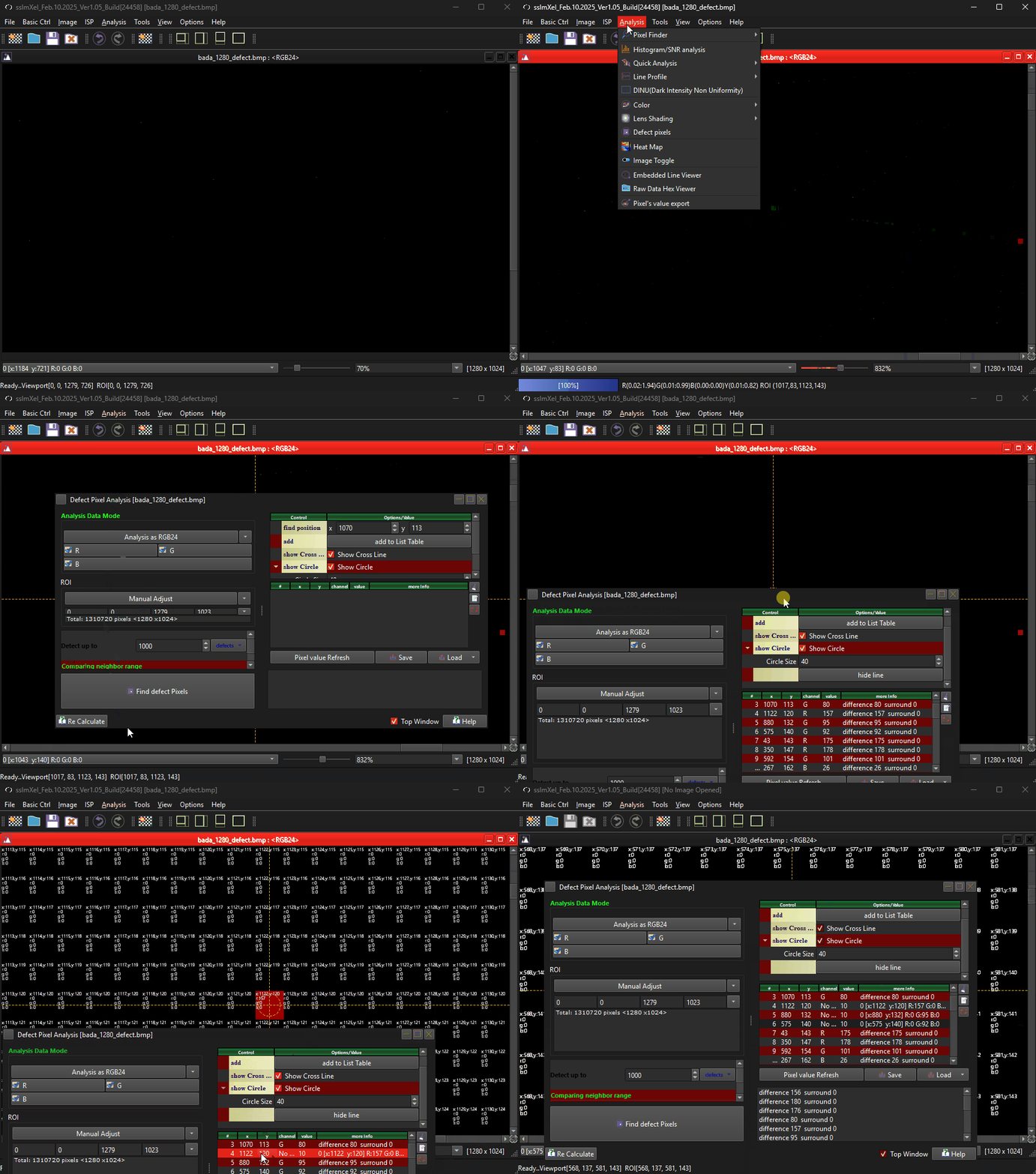
By selecting the menu options in the order shown in the image above or by choosing the toolbar icon
 , the DefectPixel dialog box will be showed up as shown in below picture.
For a more detailed explanation of the toolbar button or how to configure toolbar,please refer to configure toolbar
, the DefectPixel dialog box will be showed up as shown in below picture.
For a more detailed explanation of the toolbar button or how to configure toolbar,please refer to configure toolbar 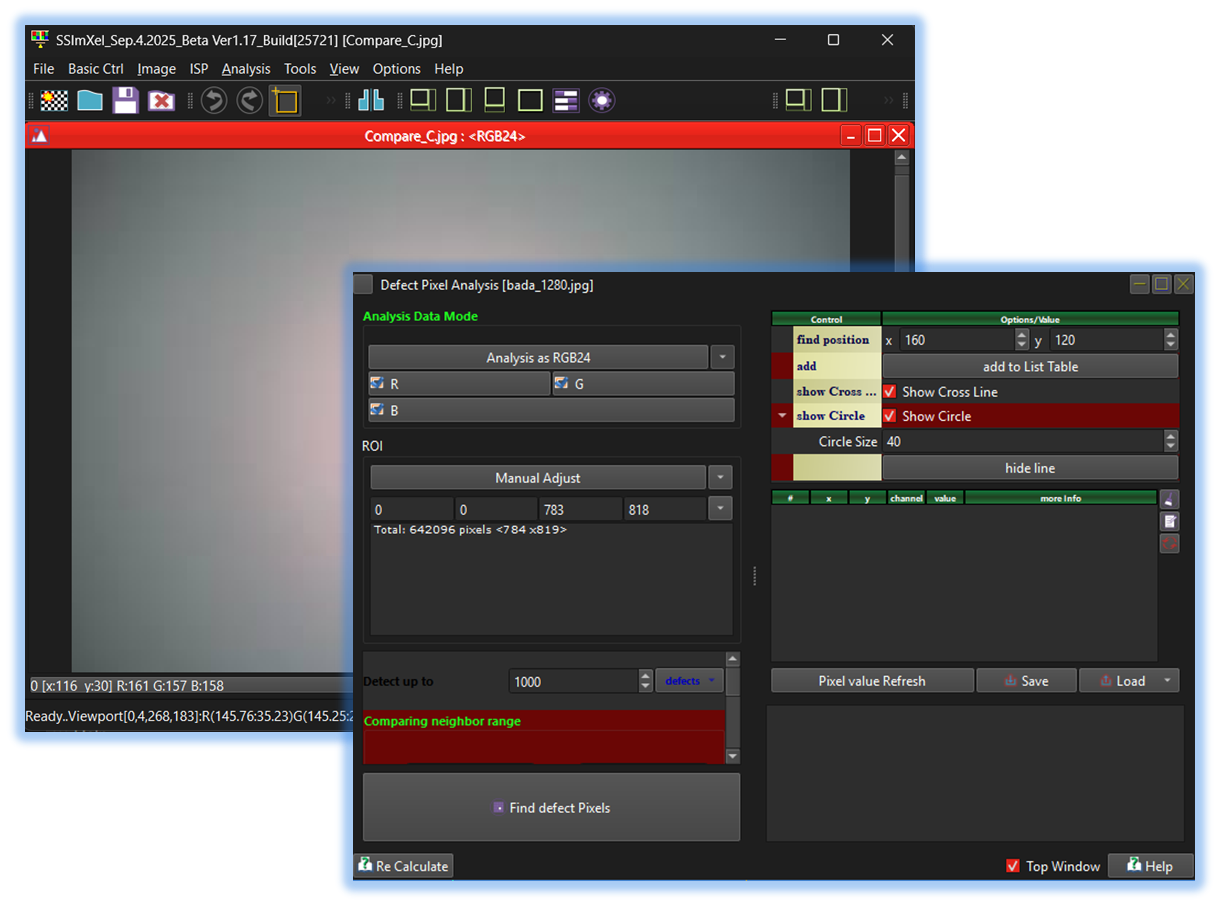

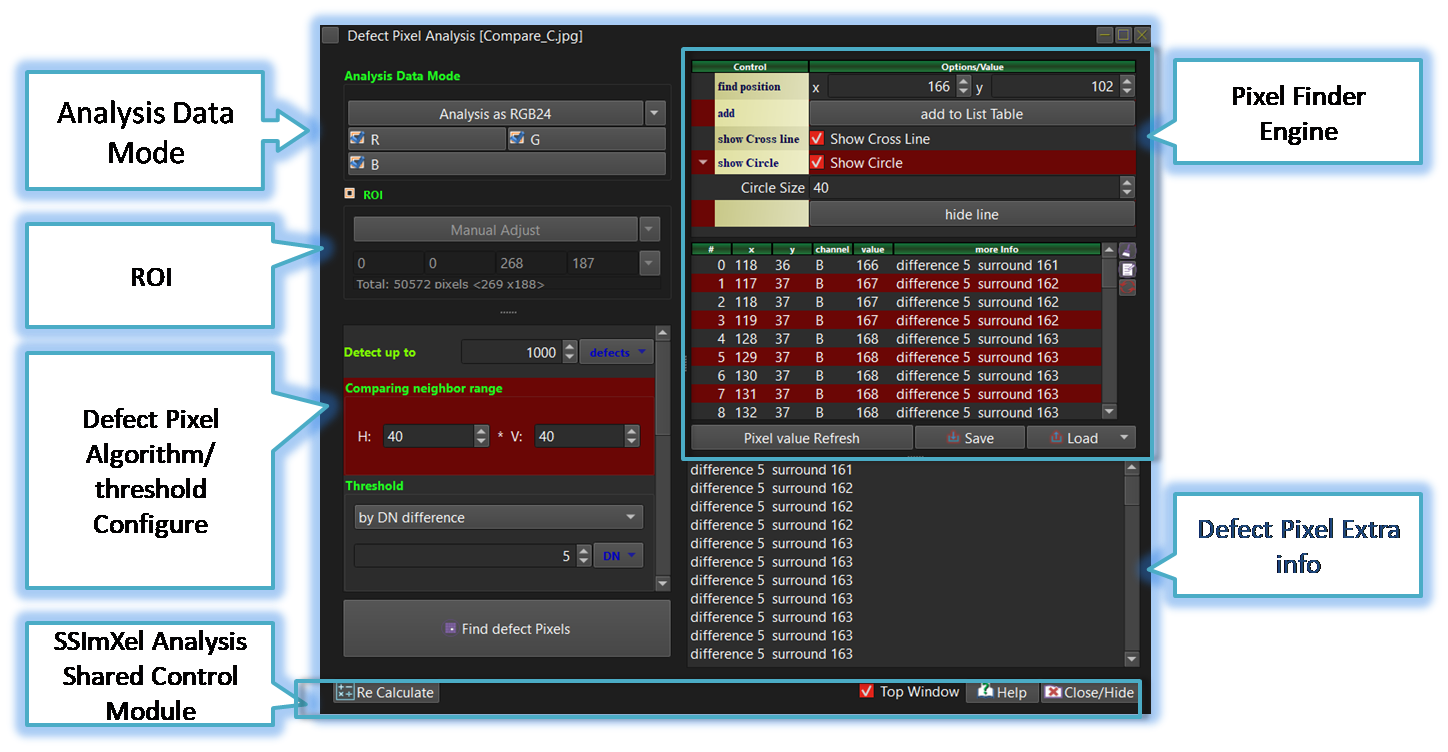
-
ROI
By allowing users to specify a Region of Interest (ROI) in addition to analyzing the entire image, the analysis speed can be increased, and the accuracy of the analysis can be improved by focusing only on the areas of interest.
-
Analysis_Data_Mode
This control allows the user to select specific channels for analysis. For Bayer raw images, the analysis can be performed in either Bayer raw mode or RGB24 mode. Within each mode, the user can further select the desired color or pattern channels for analysis.
-
Pixel Finder by position
The Defect Pixel includes a Pixel Finder module , which helps the user visually locate and access pixel positions with ease. -
SSImXel Analysis Dialog Common Ctrl
Through this control module, the user can access Help, close or hide the active analysis window, or set it as the top-most window. For more detailed information, please refer here.

Below demo demonstrates DefectPixel
 .
.