Contrast
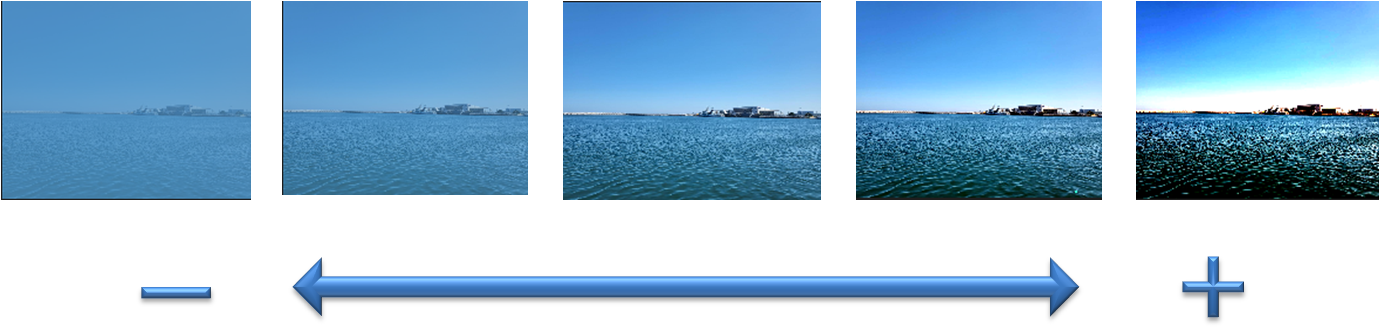
 Controlling contrast in an image is essential for enhancing visual clarity, improving detail in both bright and dark areas, and achieving a balanced dynamic range for accurate image representation. SSImXel provides effective solutions for contrast control, making the adjustment process more precise and efficient.

 By selecting the menu options in the order shown in the image above or by choosing the toolbar icon
  , the Contrast dialog box will be showed up as shown in below picture.
For a more detailed explanation of the toolbar button or how to configure toolbar , please refer to this link
, the Contrast dialog box will be showed up as shown in below picture.
For a more detailed explanation of the toolbar button or how to configure toolbar , please refer to this link

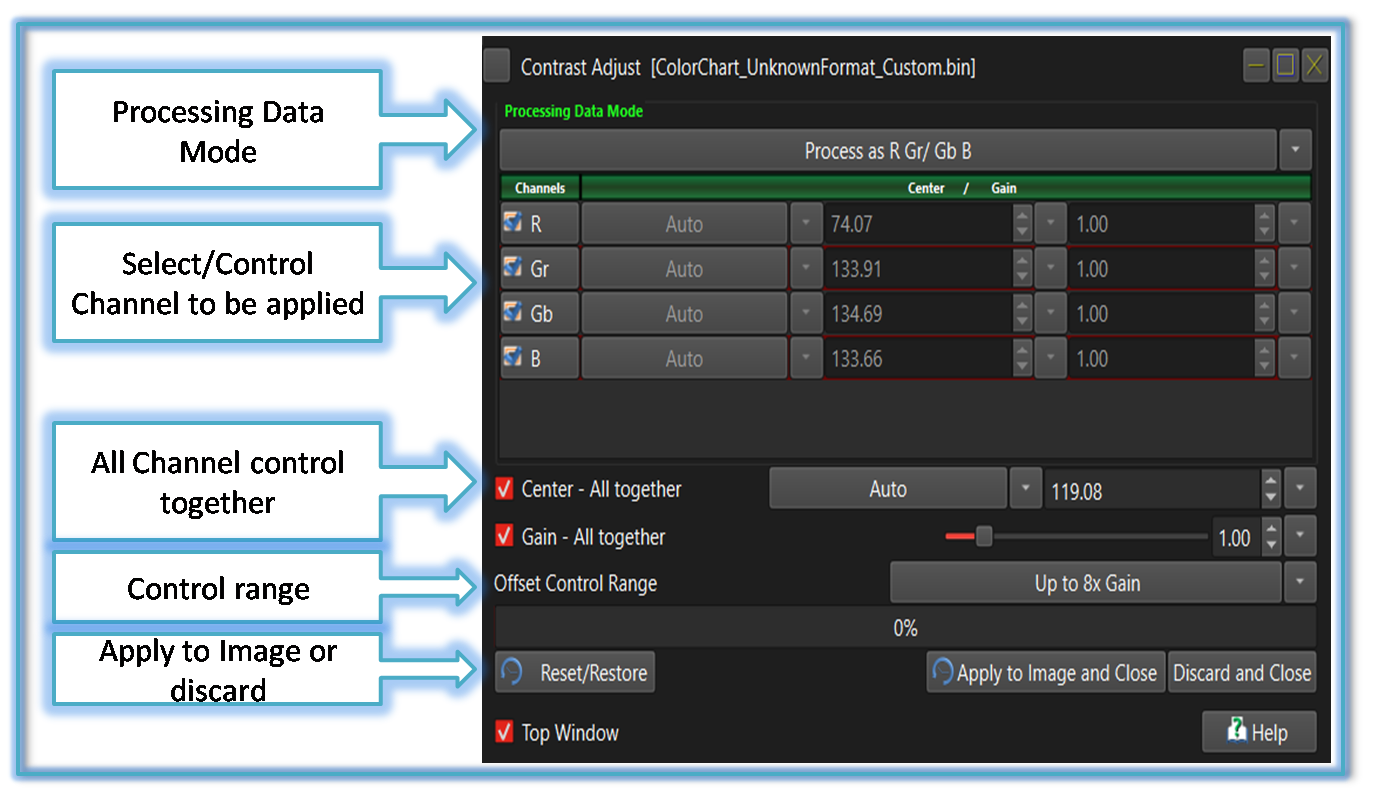 Processing Data Mode:
Depending on the image type, such as Bayer RAW or RGB24, this tool provides options to either apply different parameters to individual channels or treat the image as grayscale for uniform processing.
For more details refer to Processing_Data_Mode
Select/Control Channel to be applied:
The user can select and control the channel to which the parameters are applied.
Processing Data Mode:
Depending on the image type, such as Bayer RAW or RGB24, this tool provides options to either apply different parameters to individual channels or treat the image as grayscale for uniform processing.
For more details refer to Processing_Data_Mode
Select/Control Channel to be applied:
The user can select and control the channel to which the parameters are applied.
All Channel control together: If the user wants to control all selected channels together or apply the same parameter, they can check the 'All Selected Channel Control Together' option and adjust the parameter using a single control.
Control Range: This option defines the control boundary or the range within which adjustments can be made.
Apply to Image or discard: When the user changes the parameter value, they can immediately see how the Contrast adjusts accordingly. However, this change is not yet applied to the image. To apply the adjustment, the user should click the 'Apply to Image and Close' button. If they wish to discard the changes and retain the original image state before closing the control panel, they can click the 'Discard and Close' button. To revert the image to its original state without closing the control panel, the user can select the 'Reset/Restore' button.
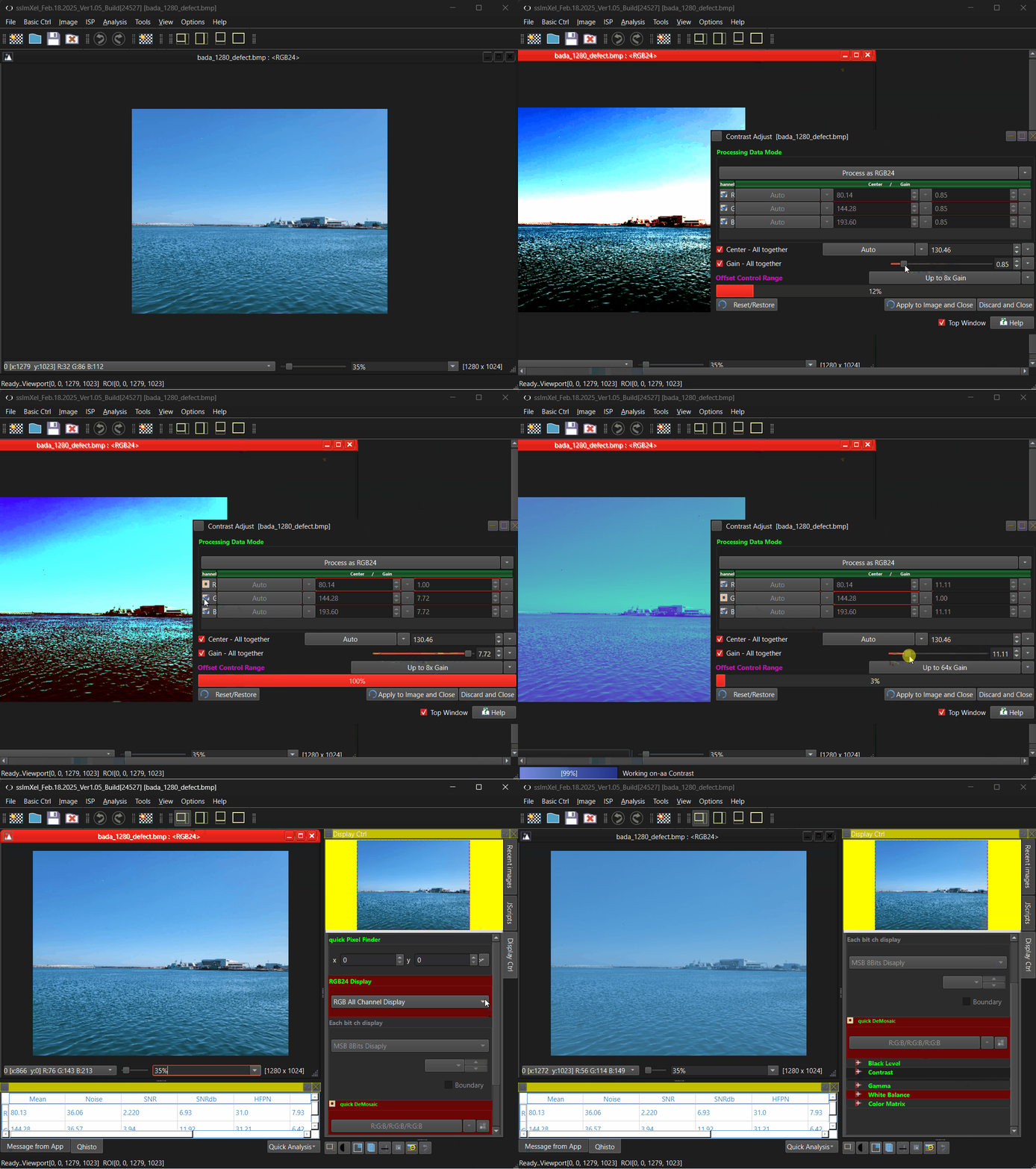
 Below demo demonstrates Contrast
 .
.