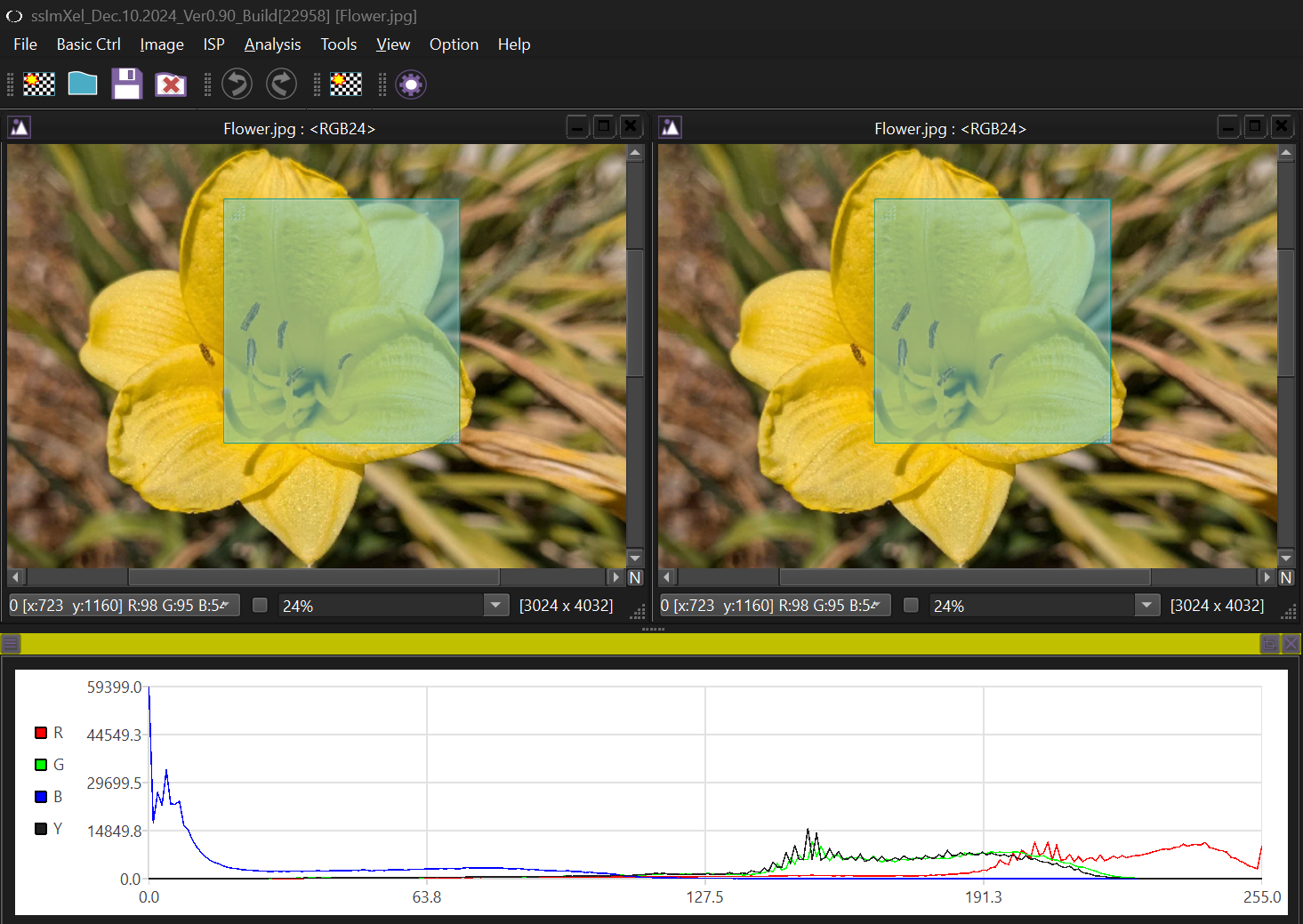
Quick Start SSImXel

Method A : Run SSImXel.exe
Step 1: Click SSImXel icon from program menu or execute SSImXel.exe
Step 2: Open image files from Menu(File -> Open) or Drag and drop image files into SSImXel window
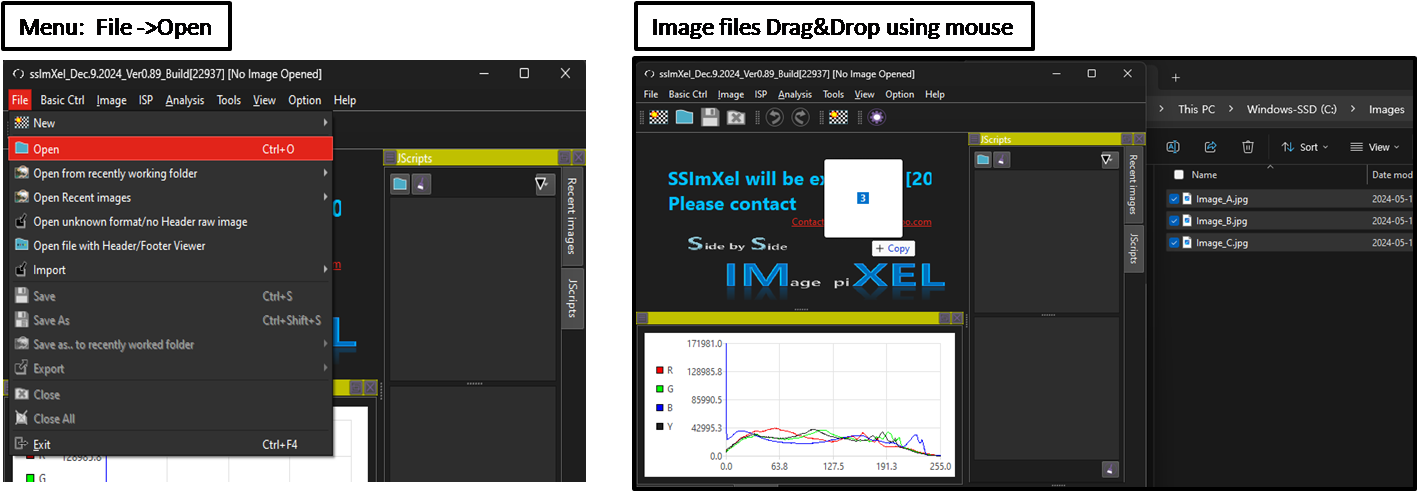
Method B : From mouse right click
Step 1: Select image files from file explore
Step 2: then click Mouse right button
Step 3: Select SSImXel from menu
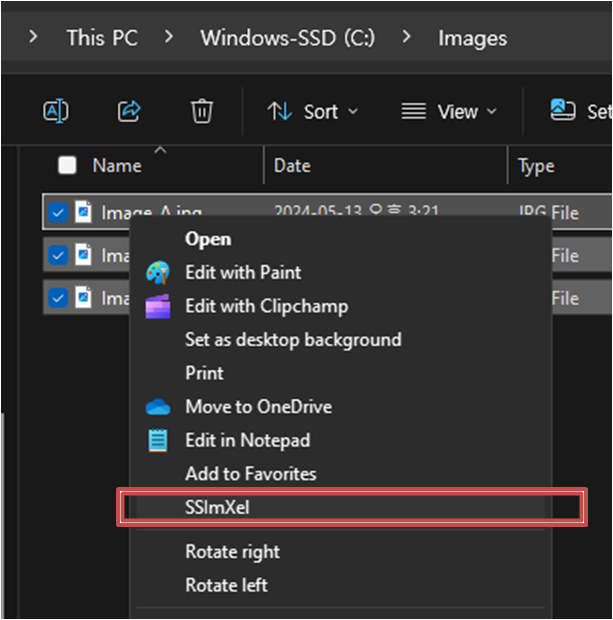
*Can't see 'SSImXel' on mouse right click menu?

Basic Overview
After launching SSImXel, users can find their uploaded images on the workbench\
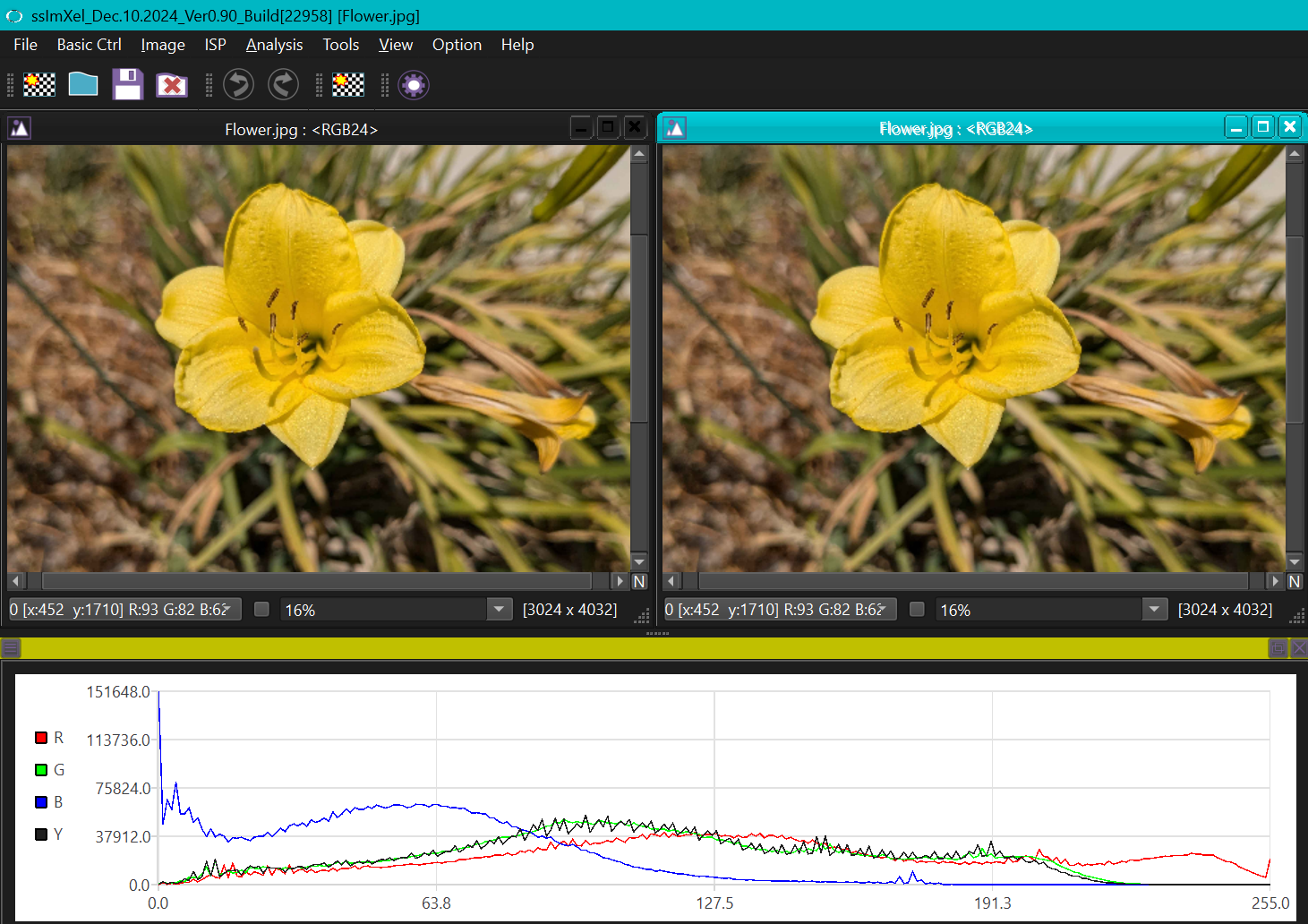
All windows will automatically show the same XY region. When the focus of one window is changed, all other windows will automatically show the same region of their image.
Users can hover over specific pixels to find data about the given pixel (RGB value, XY location), given at the bottom left of the window. Other data, like the zoom percentage and the dimensions of the image are also given here. Hovering over a pixel in one image will also give you data of the pixel at the same XY location in other images.
Zooming in will allow the user to see individual pixels and see the data of each pixel in the window.

Users can click and drag on an image to specify a region, allowing users to find data without zooming into the region. The same region will be found for all other windows