Image Shading Remover/Image Flatter
-> go to
[LensShading_Top]
[ISP]

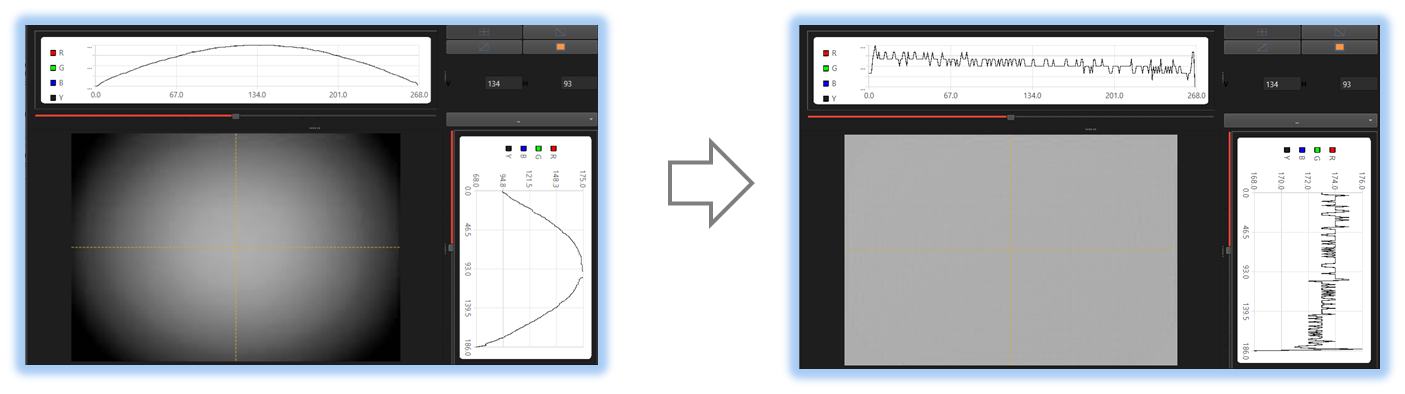
Lens shading removal is essential in an image tool for correcting brightness and color unevenness caused by optical and sensor characteristics. Various types of lens shading correction exist, including methods for eliminating shading factors in both signal and noise analysis, which is crucial for accurate image processing and evaluation. This tool provides intuitive controls for precise lens shading removal, ensuring balanced image quality and reliable analytical results.
 .
.
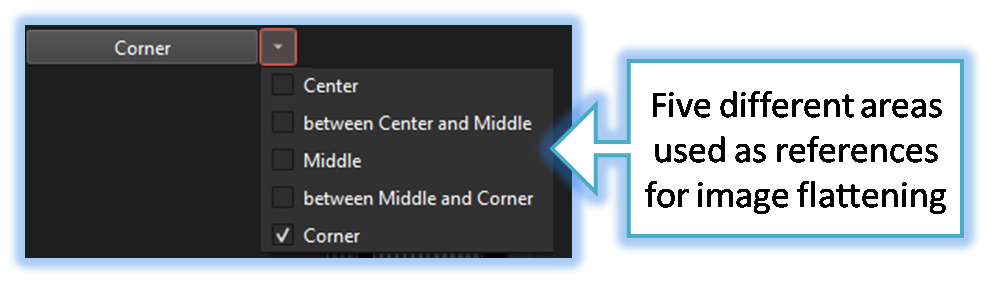
- SSImXel Shading remover provides not only a center-area-based image flatter feature, but also supports image flatter functionality based on five different positions.
- SSImXel also provide Lens Shading Analysis function.

- LensShading
- LensShading 3D
- HeatMap
- LensShading_Top (Parent Menu)

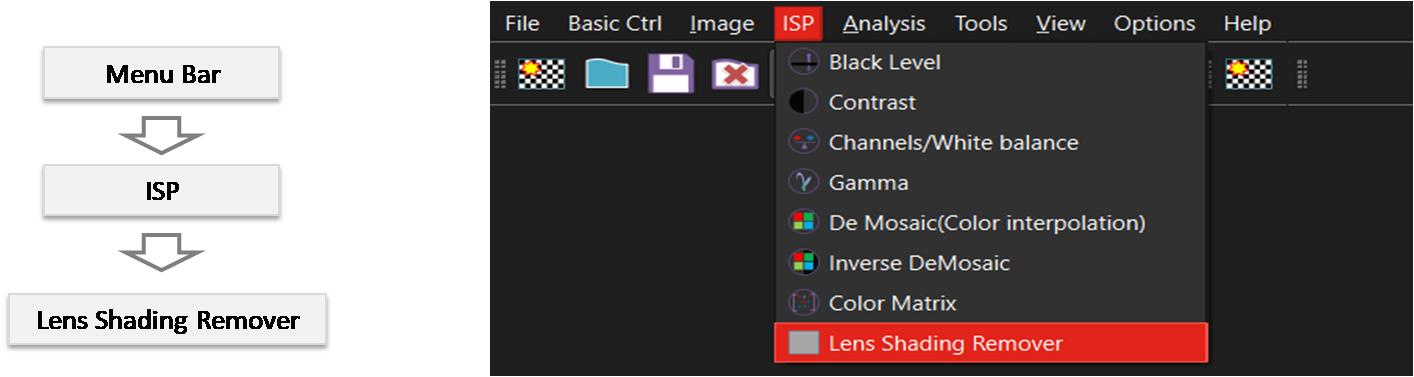
By selecting the menu options in the order shown in the image above or by choosing the toolbar icon
 , the ShadingRemover dialog box will be showed up as shown in below picture.
For a more detailed explanation of the toolbar button or how to configure toolbar,please refer to configure toolbar
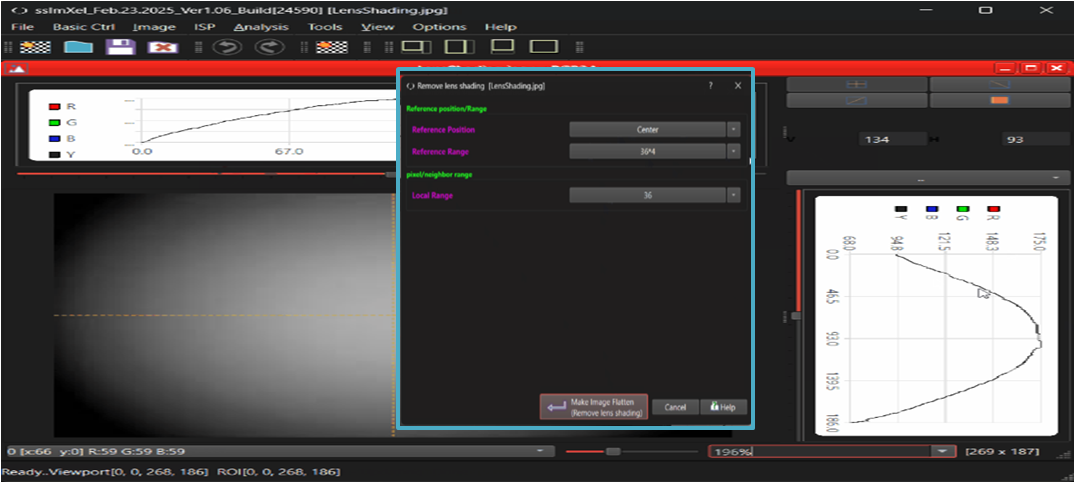

In "Remove lens Shading" control dialog box, the user adjusts configurations such as 'reference position,' 'reference range,' and 'applied local range.' Then, by clicking the 'Make Image Flatten' button, the tool will process the image to make it flatter.
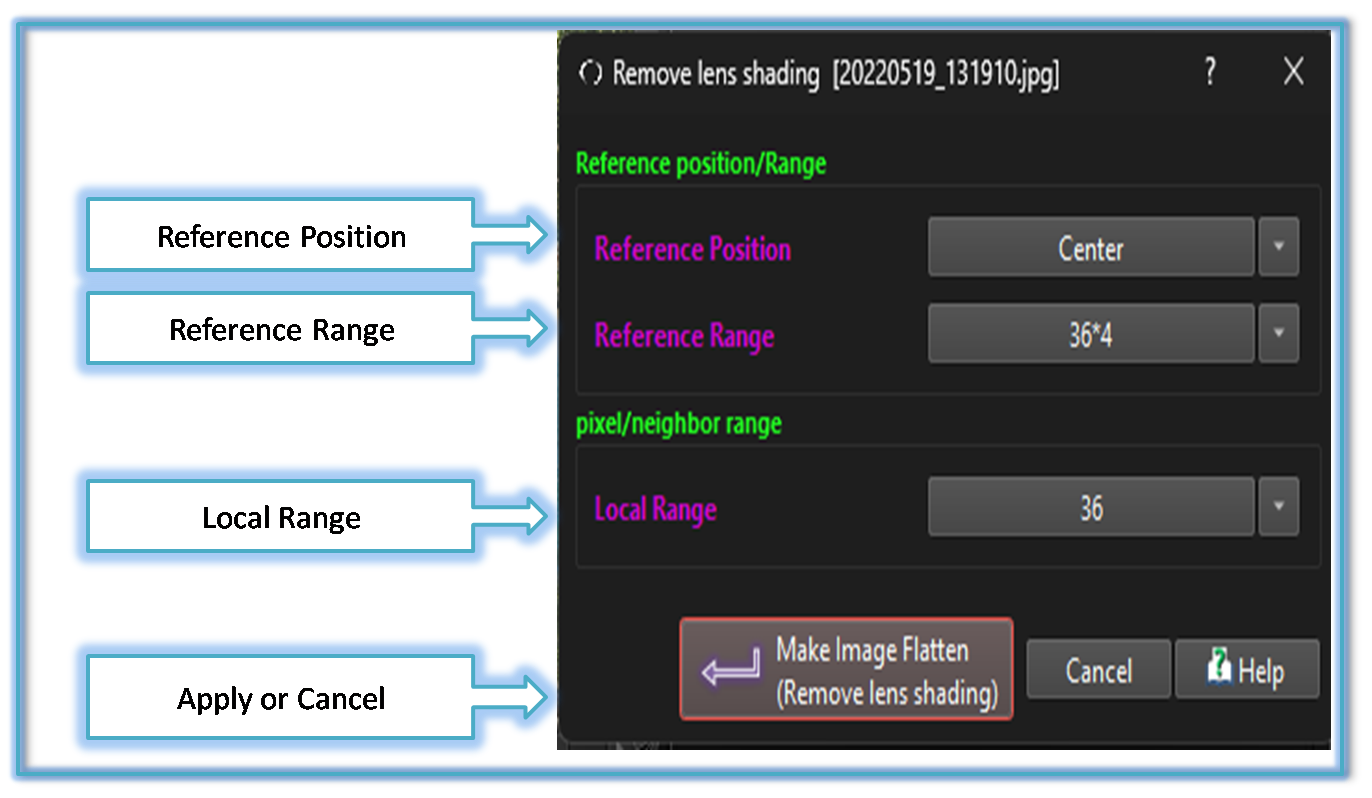
-
Reference Position:
The user can select the reference area position for image flattening calculations.
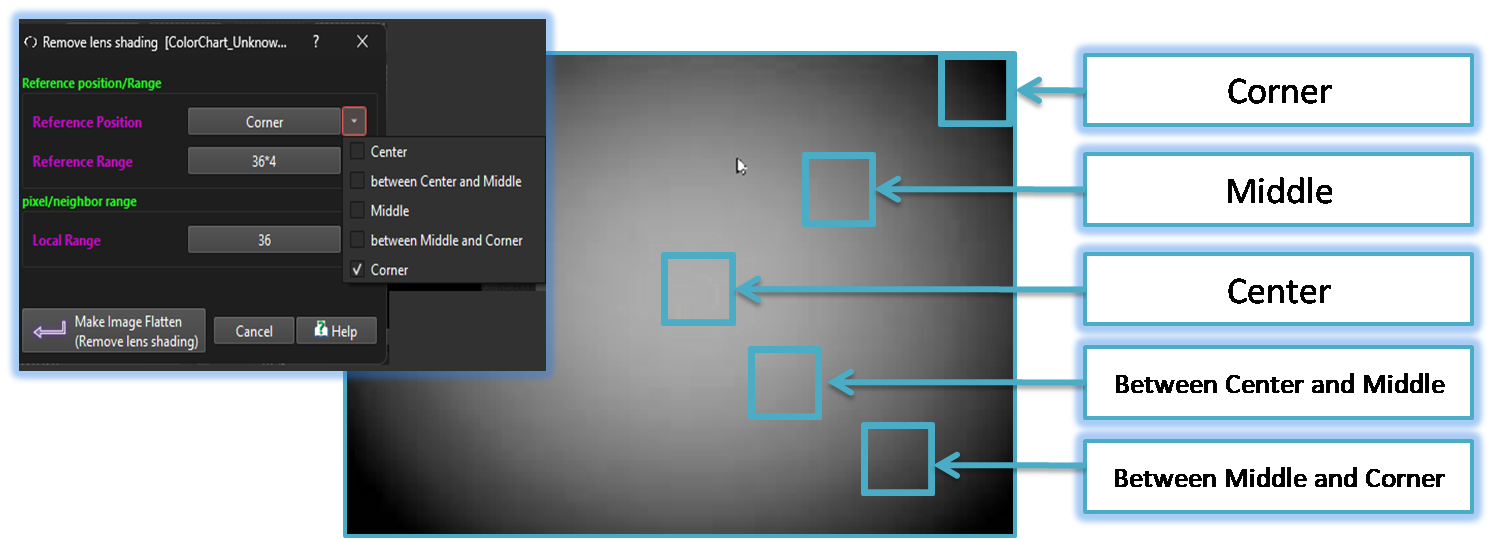
-
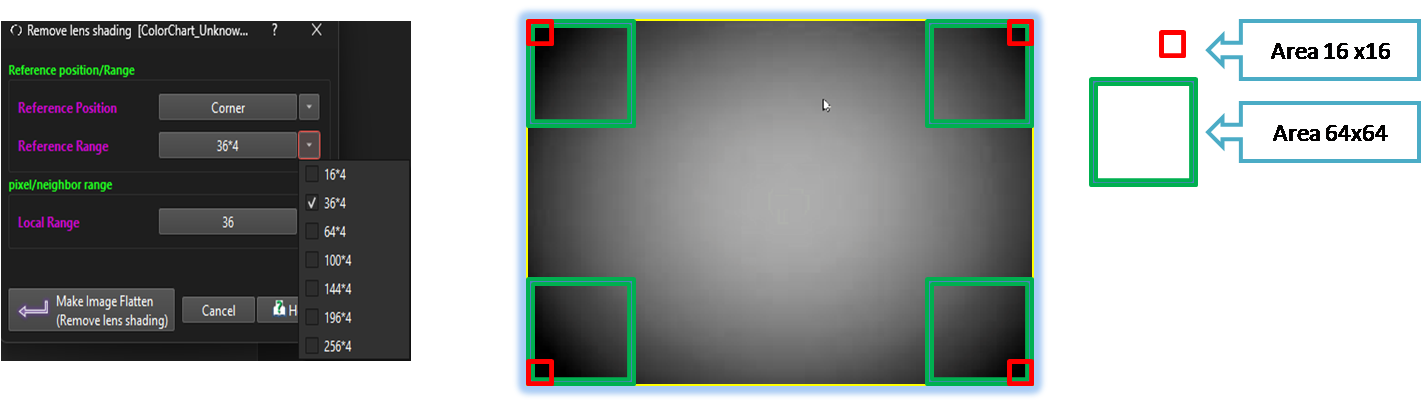
Reference Range:
The Image Flattener utilizes four reference areas, arranged symmetrically in both the horizontal and vertical directions. Through this control, the user can specify the size of each reference area for image flattening calculations.
- Local Range: If this value is increased, the resulting image will have more shading while preserving high-frequency components. Conversely, if the value is decreased, the image will appear flatter but will lose high-frequency details.
- Apply or Cancel: Once the user has adjusted all parameter values, they can click the 'Make Image Flatten' button. The tool will then process the image flattening, allowing the user to view the applied changes. and if the user clicks the cancel button, the Image flatter control dialog will be closed without applying any changes to the image.

Below demo demonstrates ShadingRemover
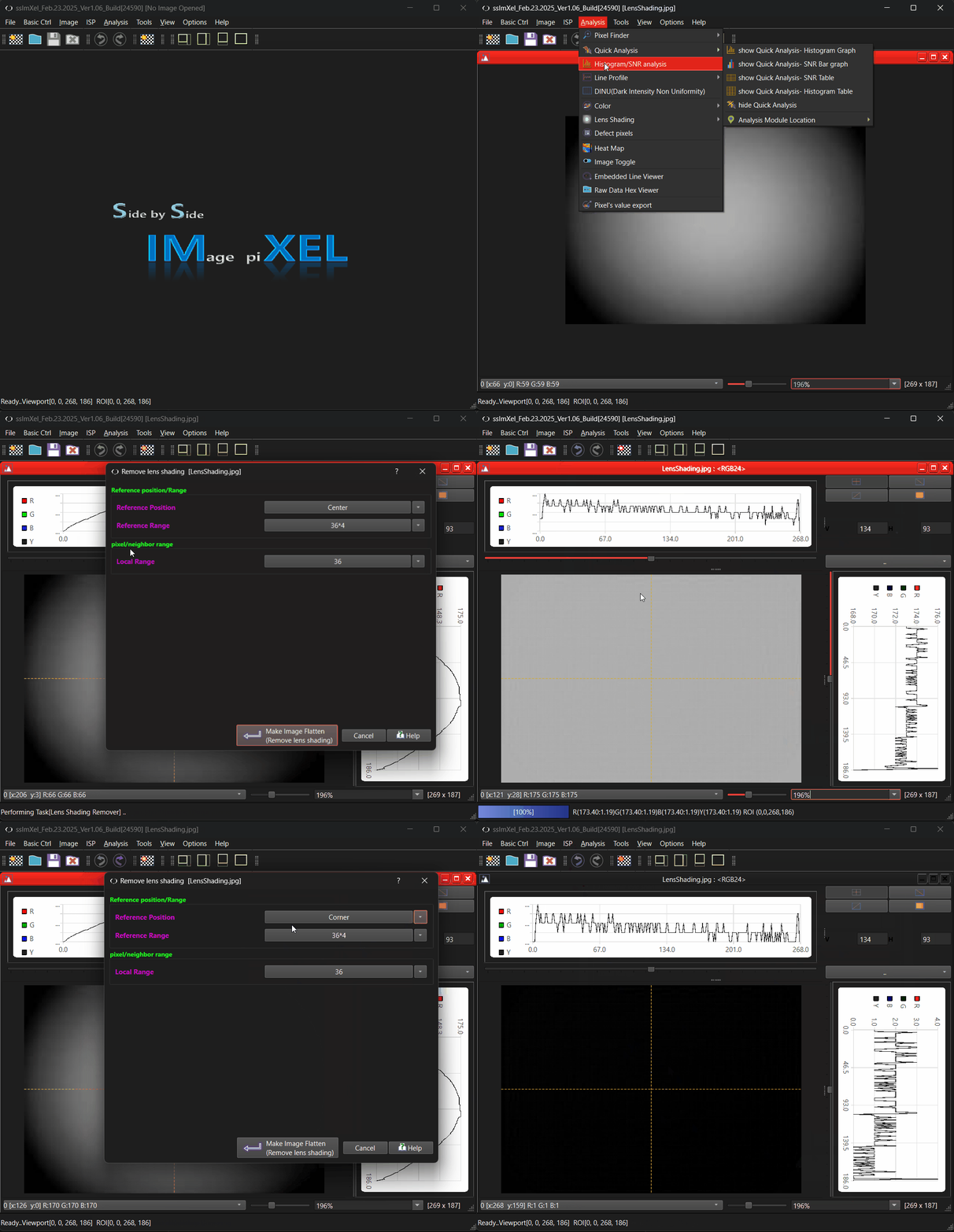 .
.