Crop to New Image
-> go to [Crop]

The "Crop to New Image" function allows users to quickly extract a selected region from an existing image and create a new image from the cropped area. This feature is useful for refining image content, isolating specific sections, or preparing data for further analysis.
If the original image is RGB24, the cropped image will also be RGB24. Similarly, if the original image is a Bayer RAW image, the cropped image will remain a Bayer RAW image.
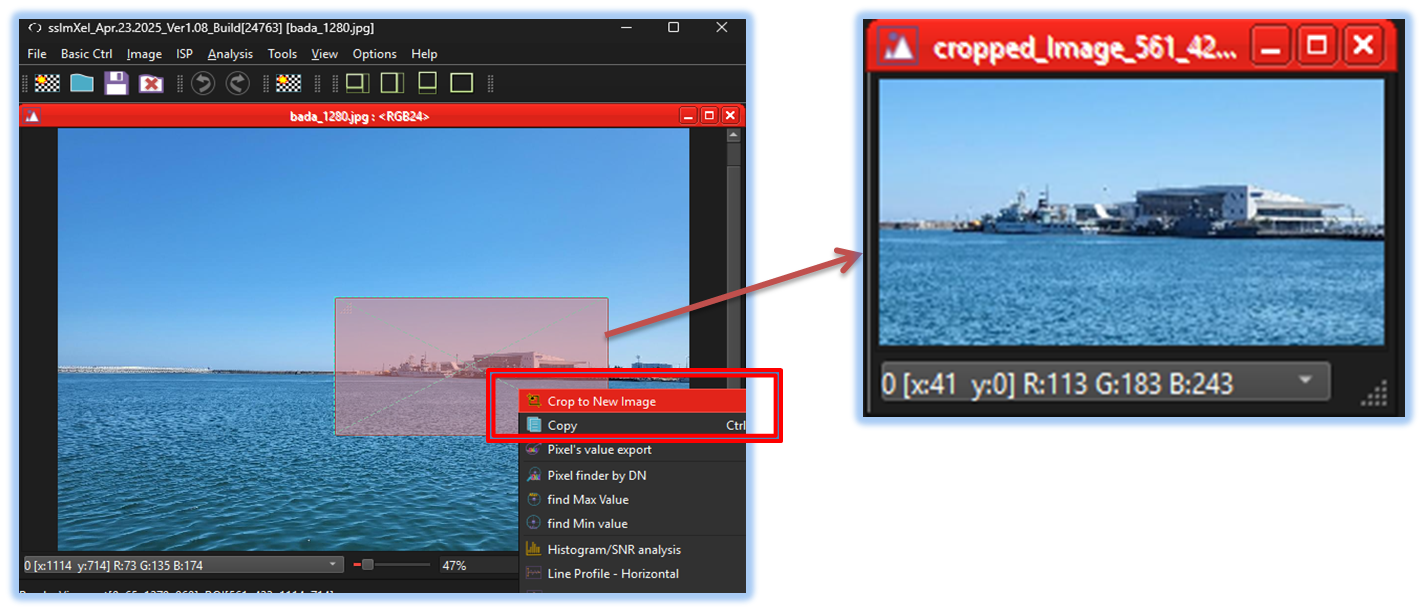

- Crop (Parent Menu)

-
Step 1: Select the ROI
Adjust the size and position of the ROI as needed by using Mouse control or ROI Control
-
Step 2: Click "Crop as New Image
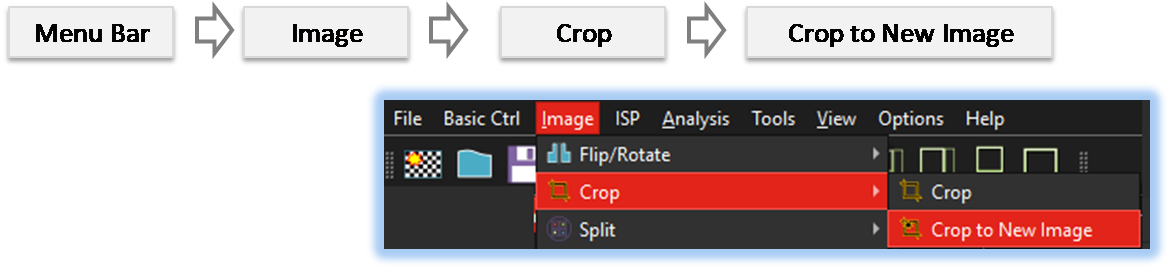
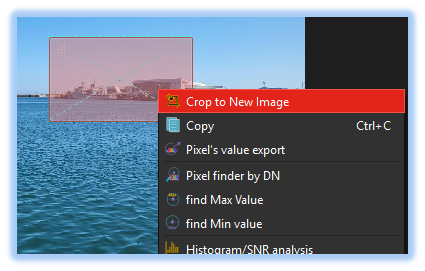
There are two ways to use 'Crop to New Image', one is through the main menu, and the other is by mouse right-clicking on the image.
-
through the main menu bar
-
by mouse right click
-
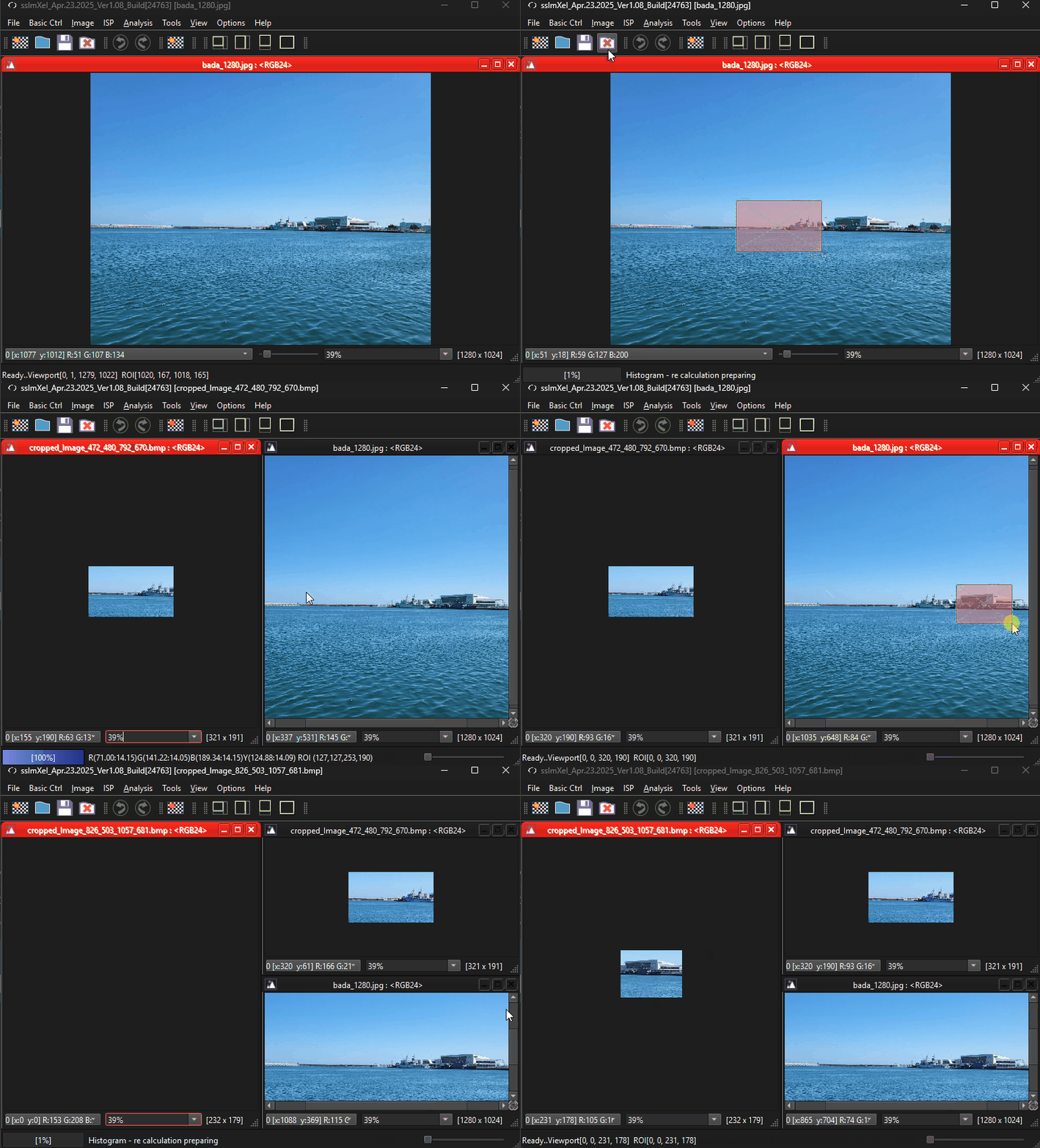
Step 3: Edit , analysis or save the New Image
Users can save the new image or apply analysis tools to it.

Below demo demonstrates Crop to New Image
 .
.